OneDrive Should already installed on your computer search in programs if you don’t find it download from the below link and follow the procedure.
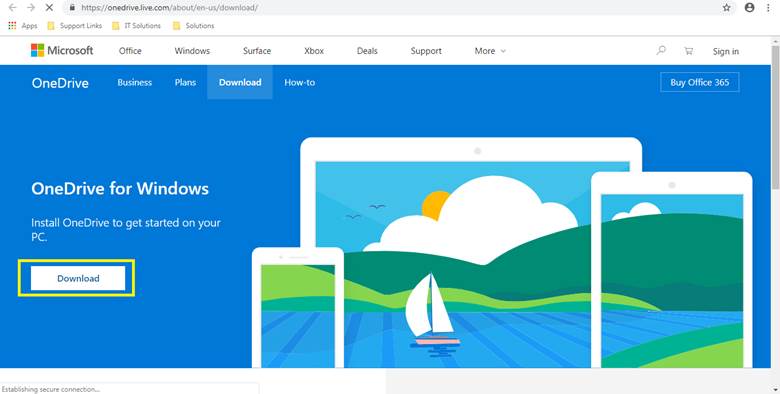
- First access the URL https://onedrive.live.com/about/en-us/download/ you will see below screen click on Download option setup will get downloaded.
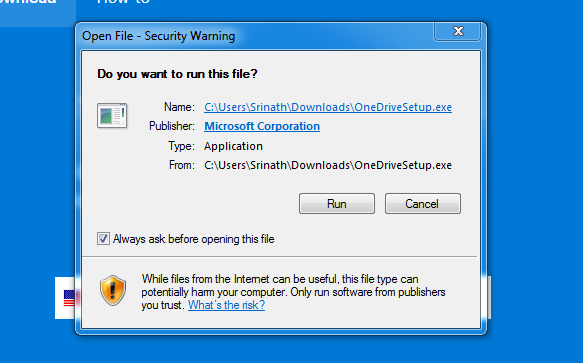
- Once downloaded right click and click on open and run the setup.
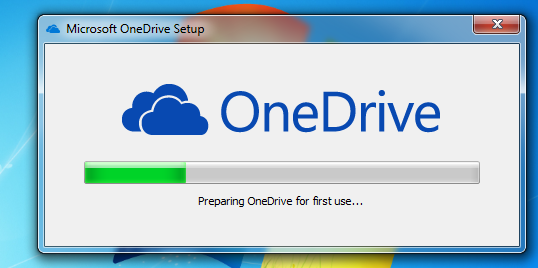
- Once you click on Run it will install the OneDrive.
- Once successfully installed go to start and click on OneDrive you will see below screen
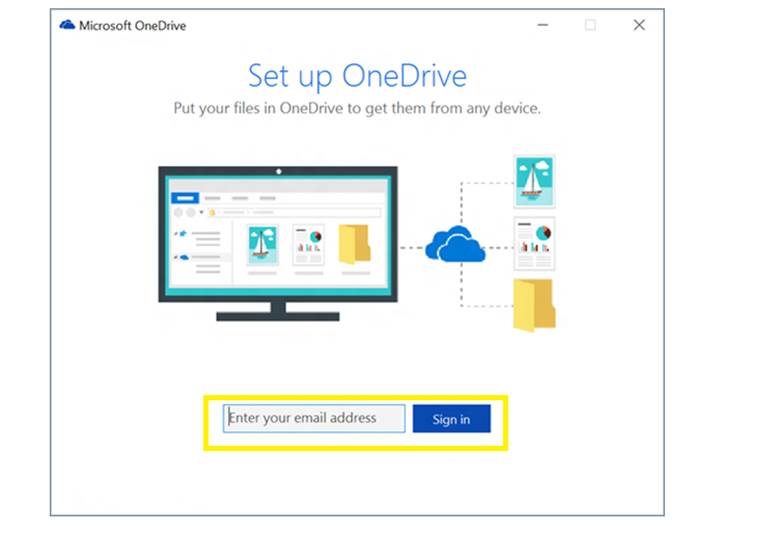
- Once you get above screen you need to enter the email id ex: test@hkinfotec.com and click on Sign in then enter your email password you will see below screen
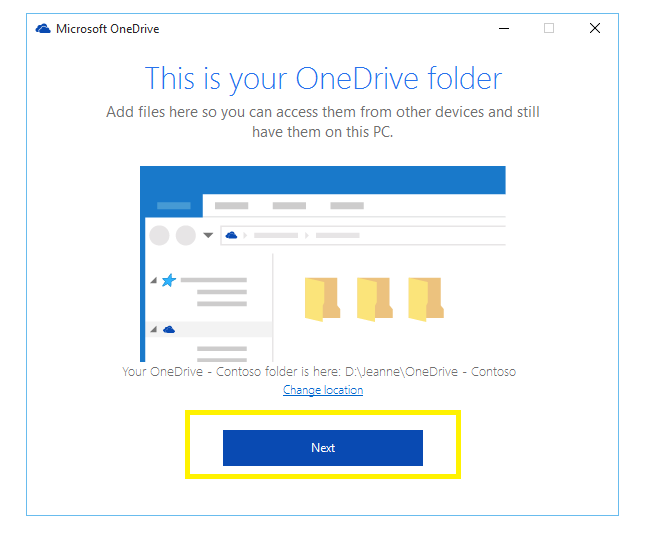
- If you want to change the location, you can change and click on next you will see below screen with sync folders (We suggest to change the folder location to D drive because it will occupy the space of your C drive on default location)
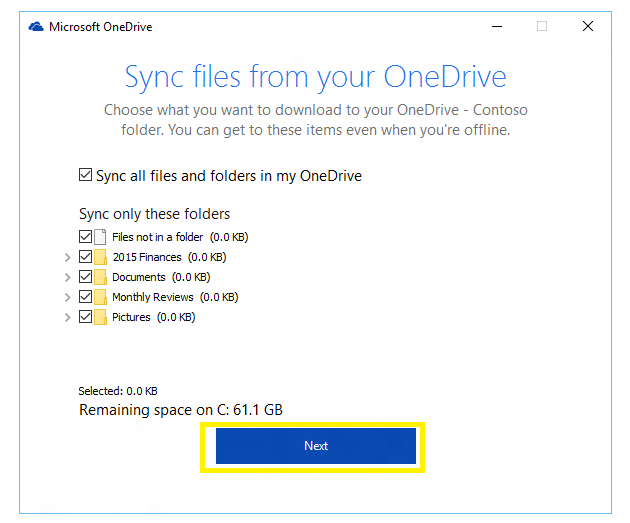
- In above screen if you Sync all folder click on Sync all or you can choose which one you want to Sync and the click on next you will see below screen.
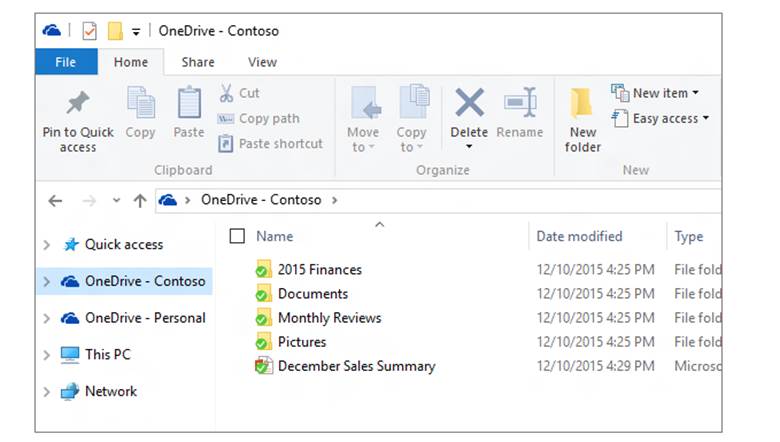
- In above screen you will see synced folders to one drive.
- In notification area you can able to see the on drive is up to date.
- So, basically whatever you put inside this folder is synced online you can login to www.office.com and verify for the files and folders.

How to do backup
- First Right click on One Drive in the notification area and select settings below screen show
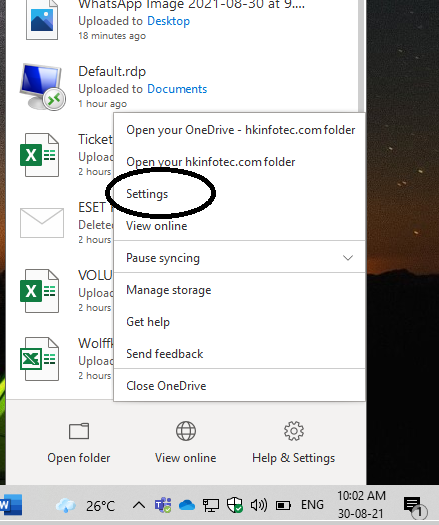
- Once you click on Settings page you will see below screen click on backup.
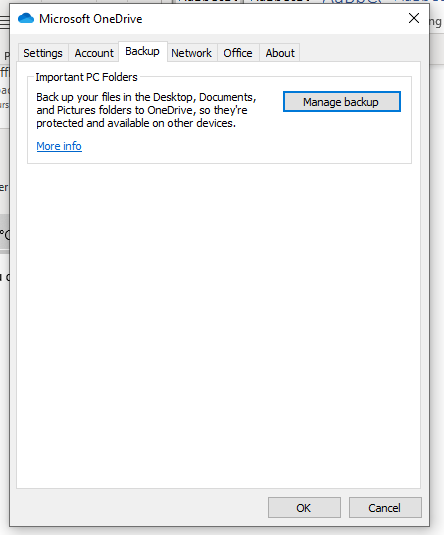
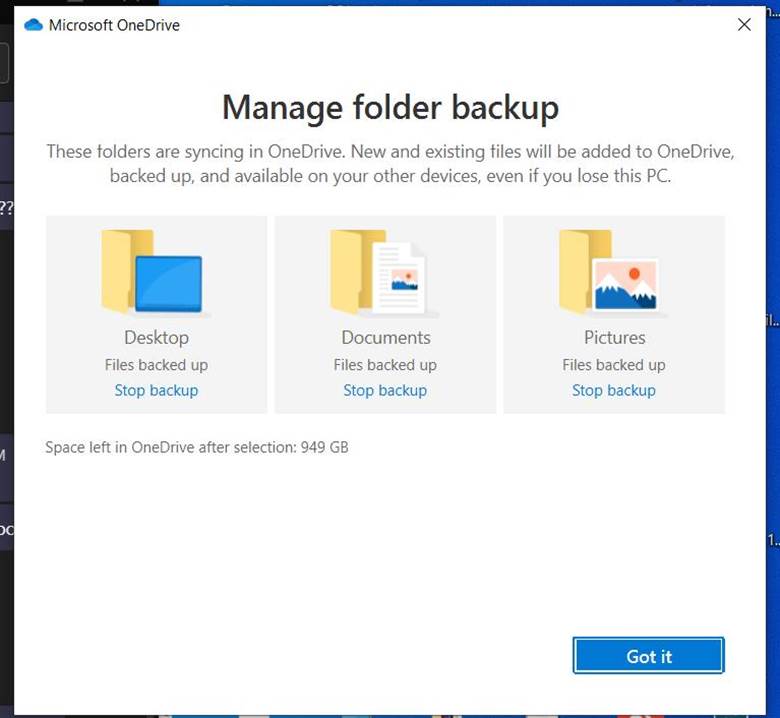
- Select Manage backup use popup options to choose what folder to back up in OneDrive
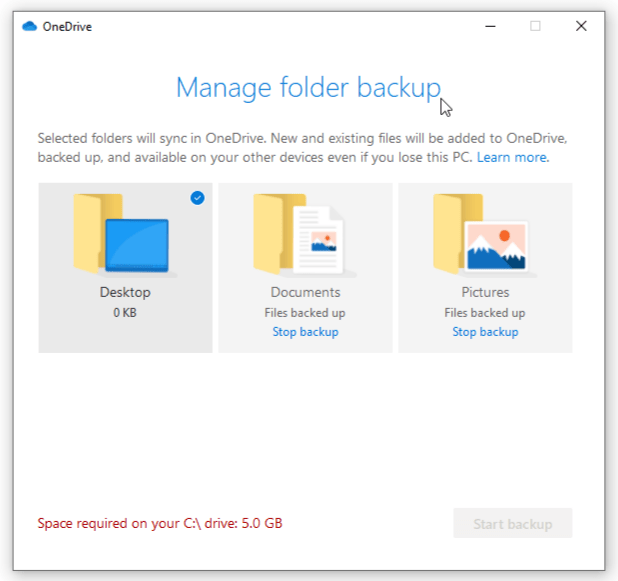
- This options you will select your Desktop, Document & Pictures and then click on start backup.